

In the past, building your own indicator required programming skills or someone who had them. Today a clear description in plain language is enough: an artificial intelligence writes the code for TradingView or MetaTrader 5, explains it and fixes errors. That has opened a door for traders that stayed closed for a long time.
In this article I show you which AI tools are available, why I use Claude exclusively for coding, three simple examples you can rebuild, and one example step by step, from the idea to the line on the chart.
Script, indicator, strategy: a quick explanation
- Indicator: calculates something from price and shows it on the chart, such as an average or a marker.
- Script: the umbrella term for a small program in the platform. It can also simply draw fixed lines at certain prices without calculating anything.
- Strategy: a script that contains buy and sell rules and runs them in a backtest.
In TradingView the programming language is called Pine Script, in MetaTrader 5 it is MQL5. For beginners I recommend Pine Script: the language is simpler, the editor is built right into TradingView, and you see the result on the chart straight away.
The tools: Claude, ChatGPT and Gemini
Three AI assistants are the most widely used today: Claude by Anthropic, ChatGPT by OpenAI and Gemini by Google. All three can write code, including Pine Script and MQL5, and all three can be tried for free. For short questions or simple scripts they often deliver comparable results.
For coding I use Claude 100% of the time. The reason is my experience from many projects: Claude sticks very closely to what I describe, writes longer code cleanly and coherently, explains clearly what it has done and reliably finds errors when I send it the error message. My own scripts for TradingView and MetaTrader 5 were created this way. That is my personal experience; feel free to try out which tool suits you best.
Three simple examples to rebuild
The following three scripts are short, useful and a good start. You can paste them straight into TradingView or use them as a template and have the AI extend them.
Example 1: daily open as a line
Draws the opening price of the day as a horizontal line. One of the most important levels in day trading: if price is above it, buyers have the edge; if it is below, sellers do.
//@version=6
indicator("Daily Open", overlay = true)

var float dayOpen = na
if timeframe.change("D")
    dayOpen := open

plot(timeframe.change("D") ? na : dayOpen, "Daily Open",
     color = color.aqua, linewidth = 2, style = plot.style_linebr)
Example 2: previous day high and low
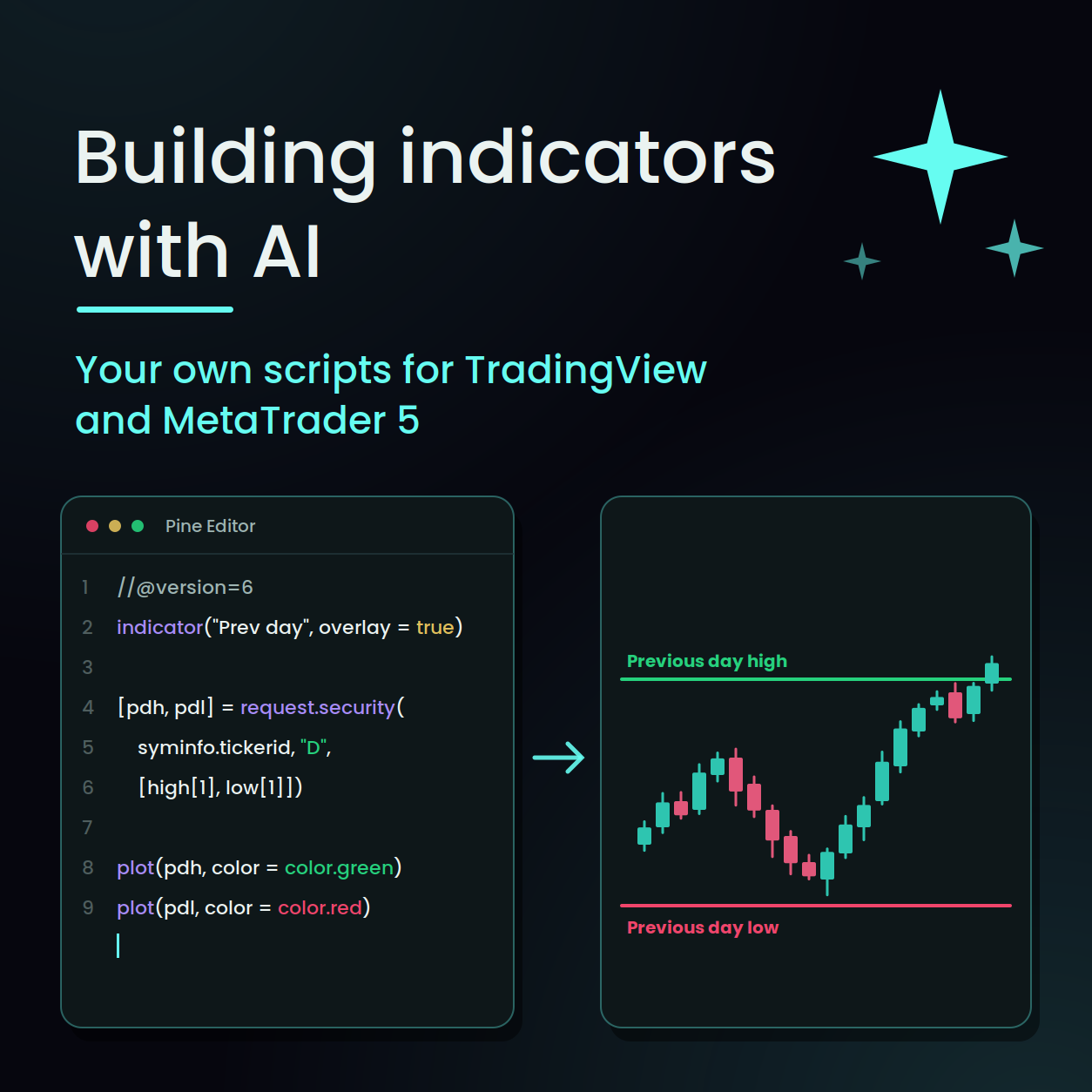
Draws the high and the low of the previous day. These levels often act as support or resistance. I show you this example step by step further down.
Example 3: marking inside bars
An inside bar is a candle whose high and low lie completely within the previous candle. It shows a short pause in the market, often before a stronger move. The script marks it with a small triangle and offers you an alert.
//@version=6
indicator("Inside Bar", overlay = true)

insideBar = high < high[1] and low > low[1]

plotshape(insideBar, "Inside Bar", shape.triangledown,
     location.abovebar, color.orange, size = size.tiny)
alertcondition(insideBar, "Inside Bar", "An inside bar has formed")
Step by step: previous day high and low with Claude
Step 1: Describe the idea clearly. The more precise your description, the better the result. Name the platform, the language and the version, describe what should appear on the chart and which settings you want to be able to change. Open claude.ai and write, for example:
Your prompt: Write me an indicator in Pine Script version 6 for TradingView. It should draw the high and the low of the previous day as horizontal lines on the chart, the high in green and the low in red. The lines should only apply to the respective day and start again the next day. I want to be able to change the colours and line width in the settings. Briefly explain what the individual lines do.
Step 2: Receive the code. Claude replies with the finished code and a short explanation. The result looks something like this:
//@version=6
indicator("Previous Day High and Low", overlay = true)

colHigh = input.color(color.green, "Colour previous day high")
colLow  = input.color(color.red,   "Colour previous day low")
width   = input.int(2, "Line width", minval = 1, maxval = 5)

[pdh, pdl] = request.security(syminfo.tickerid, "D", [high[1], low[1]],
     lookahead = barmerge.lookahead_on)

newDay = timeframe.change("D")
plot(newDay ? na : pdh, "Previous day high", color = colHigh, linewidth = width, style = plot.style_linebr)
plot(newDay ? na : pdl, "Previous day low",  color = colLow,  linewidth = width, style = plot.style_linebr)
In short: the three input lines create the settings for colours and line width. request.security fetches the previous day’s high and low from the daily chart, and the two plot lines draw the lines from them. At the start of each day the line is briefly interrupted so that every day has its own line.
Step 3: Paste it into TradingView. Open a chart, click Pine Editor at the bottom, delete the sample code, paste your code and click Add to chart. Then save the script so that you keep it.
Step 4: Test it. Look at the result on different timeframes and markets. Do the lines match the daily chart? Do they start at the right time? Especially in markets that trade around the clock, the change of day may be at a different time than you expect.
Step 5: Have it improved. If TradingView shows an error message, simply copy it into the chat with Claude and add: “This error message appears, please fix it.” In the same way you can add wishes, for example: “Write the price as a label at the right end of the line” or “Add an alert when price crosses above the previous day high.” After two or three rounds you have exactly the indicator you had in mind.
Tips for good results
- Always name the version: “Pine Script version 6” or “MQL5 for MetaTrader 5”. Otherwise you sometimes get outdated code.
- Describe the result, not the code: what should appear on the chart, which colours, which settings?
- Start small: first a line, then the label, then the alert. Step by step is faster than everything at once.
- Have the code explained: that way you learn what it does along the way and spot errors more easily.
- Check critically: an AI makes mistakes too. Test every script thoroughly before you rely on it when trading.
Important: an AI writes the code for you, but not a profitable strategy. An indicator is a tool that shows you the market more clearly. The decision when to enter and where to place your stop remains yours. And never give an AI the login details for your trading account.
For me, AI has become a real tool in trading. Ideas I had in my head for years are now on the chart as a script within a few hours. Give it a try: start with one of the three examples and extend it step by step to suit your needs.
This article is for financial education and does not constitute individual investment advice or a trading recommendation.
Best wishes
Gabor